Content collections are the best way to manage content in any Astro project. Using the Content layer API we can define a collection to provide automatic TypeScript type-safety for all of our content.
Let’s say we want to build our personal blog using Astro; using a collection we can turn a bunch of Markdown files (or MDX, Markdoc, YAML, or JSON files) stored locally in our project as the source of our blog content.
NOTE
This API allows us to load local content (aka files in our filesystem), but there are also third-party loaders (our create our own custom loader) to fetch the content from remote sources (think headless CMS).
To define a collection, we must create a src/content.config.ts file in your project, which Astro will use to configure your content collections (we can define many collections).
This file used to go in src/content/config.ts (the old location, Astro API moves fast), but apparently, now it has to be placed in src/content.config.ts. The glob function allows us to do two things:
Set the folder for our collection, using base (relative to project root).
Exclude some folder/files from being parsed, using the pattern option (!_**/*.md won’t match folders starting with un underscore)
NOTE
We are using TypeScript file (*.ts) to configure our collection, but it’s also possible to use JavaScript (with the .js extension) to define our collection; or even a Michael Jackson file (.mjs).
Keep your Astro source private and publish only the static build
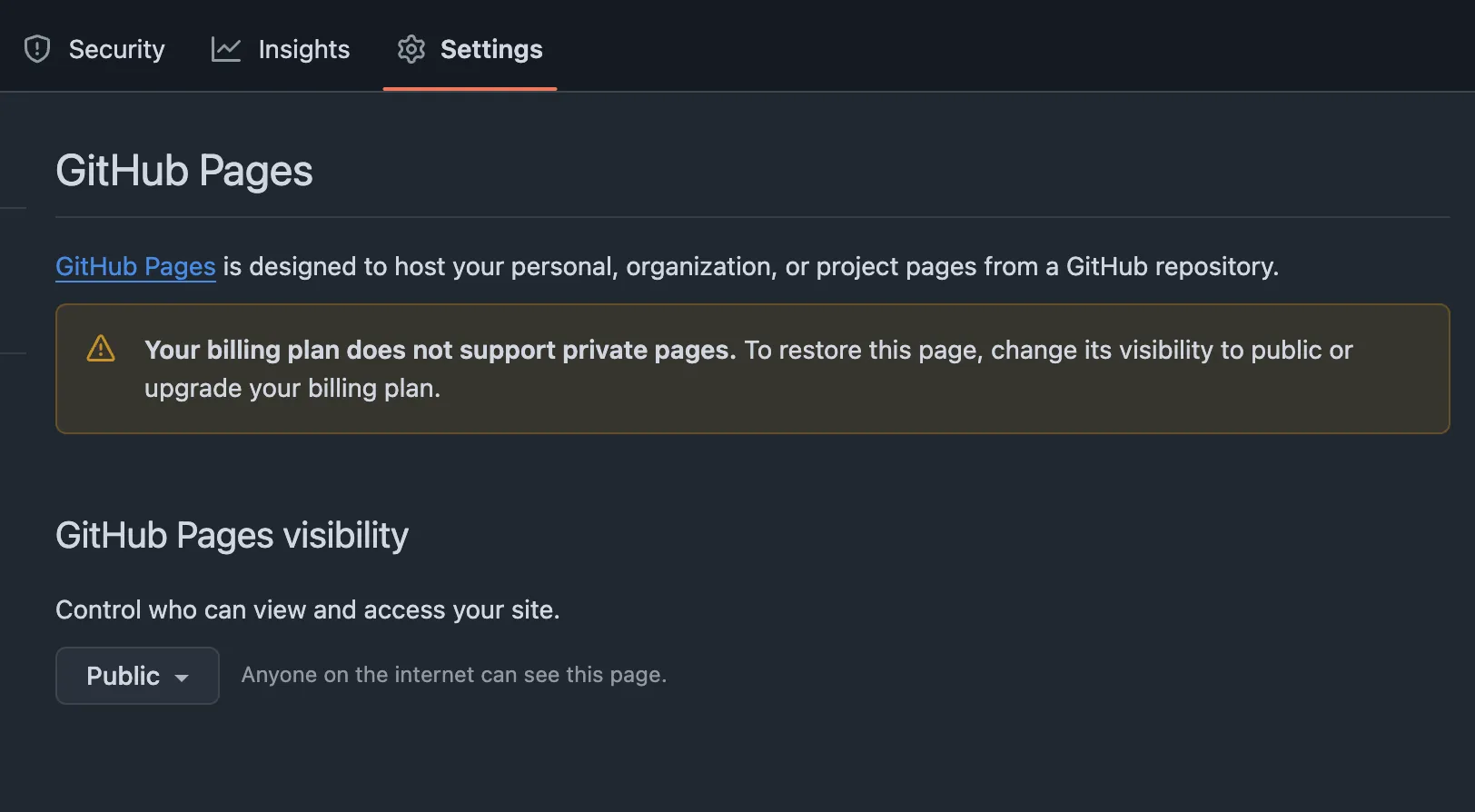
GitHub Pages for private respositories is not supported on GitHub Free (read here) and I didn’t like the idea of making the whole blog’s source code and post drafts publicly available. So I had to come up with a solution.
NOTE
I’m aware that Cloudfare Pages it’s free, faster than GitHub Pages, and supports private repos. But I also had the comments section tied to the public repo so. Maybe next time…
The idea is simply using a two-repository strategy:
Private repo - Where we keep our source code with drafts, work-in-progress posts, and all our Astro source files.
Public repo - Just the contents of the dist/ folder, for GitHub Pages deployment.
By deployment target, I mean the public repo from where we will will serve the site to the world, using GitHub Pages.
NOTE
Remember, our private repo is where we write posts, keep drafts, and build the Astro project. The public repo is just where we push the final static output.
To publish when changes are pushed to a specific branch.
Or you can write a GitHub Actions workflow to publish your site.
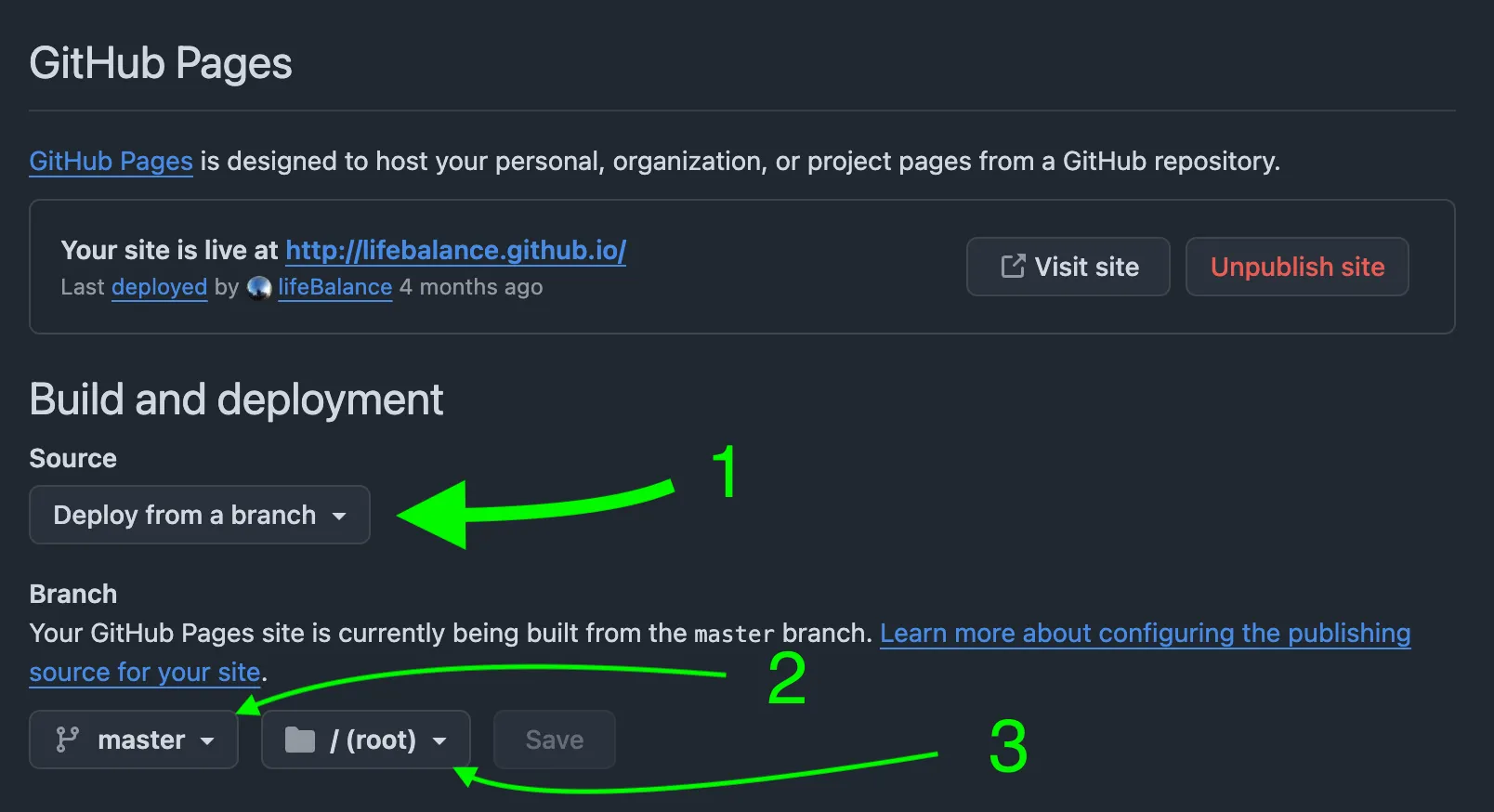
We’ll be using the first option; just click on the Settings tab of your repo, and once there, find the Pages slot in the left sidebar. Mine looked like this:
What this means is that whenever we push changes to the master branch (root folder /), our GitHub pages will be published.
Before building our site, we need to tell Astro the final public URL where our site will be published. This is controlled by two settings in astro.config.ts:
base is the path under that domain where your site will live.
Since we will be serving the page from the URL of the public repo, we need to add it to our astro.config.ts:
exportdefaultdefineConfig({
site:'https://<username>.github.io',
base:'/',
// more stuff...
})
If your public repo is the special GitHub Pages repo named <username>.github.io, then the site is served from the root:
https://<username>.github.io/.
TIP
In my case, since it was my personal page, I used the https://<username>.github.io URL. But it doesn’t have to be, any public repo URL will do, e.g. https://github.com/<username>/<repo-name>.
But if you’re publishing to a repo named foo, then you should use something like:
Not much to say here, whenever you add a new post, and are ready to publish, you need to build right? Let’s assume you have the following build script in the package.json of your private repo:
"build": "astro build"
We just have to change to the root of your private repo, and run:
Terminal window
npmrunbuild
In the case of an Astro project, we should end up with a dist folder containing the artifacts of our build.
Before start writing the action, we need to create a GitHub Personal Access Token tied to the user that has push access to the public repo (myself).
In order to do that we have to click on our user logo (upper right corner), and once the sidebar opens up, click on Settings → Developer Settings → Personal access tokens. I selected Tokens (classic), then Generate new token, and Generate new token (classic).
NOTE
Make sure you do not over-scope the token. For your use, just public_repo is enough to gives the token access to public repositories, which is enough for your workflow to push the built dist/ files to.
Give it a descriptive description (under Note); I named mine Deploy code-blue to lifeBalance.github.io. Once the token has been generated, you are redirected to a new page; you should copy the token name GH_PAGES_TOKEN.
WARNING
Make sure to copy your token now as you will not be able to see it again.
If for some reason you didn’t copy the token, just regenerate it again, no big deal.
Now we need to add the PAT as a secret (e.g., GH_PAGES_TOKEN) in the private repo:
In our private repo, we go to Settings → Secrets and variables → Actions
Click New repository secret.
Name it GH_PAGES_TOKEN (or whatever you name it in the *.yml file).
Paste your copied PAT.
That’s it — now your GitHub Actions workflow will automatically have access to it through ${{ secrets.GH_PAGES_TOKEN }} — no manual shell exports needed ever again.
If your GitHub Pro subscription expires and you can no longer publish GitHub Pages from a private repo, you do not need to delete your old GitHub Pages workflow. In my case, I kept .github/workflows/astro.yml around and disabled it.
Go to the Actions tab.
Find the Deploy Astro site to Pages workflow. That is the workflow name from astro.yml.
Open any previous run of that workflow.
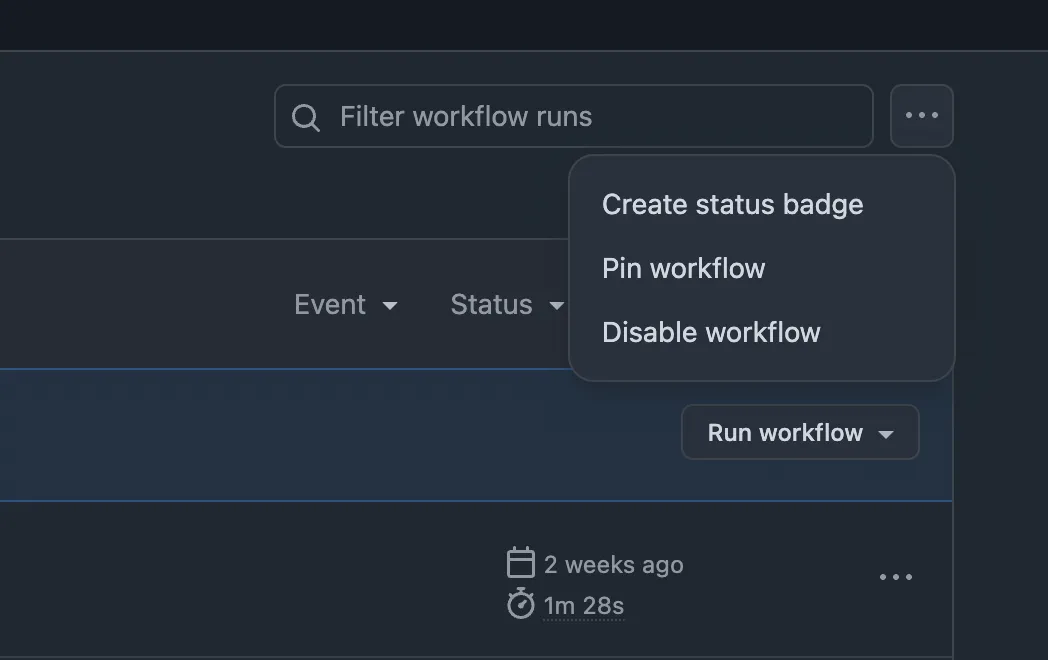
Click the ••• menu in the top-right corner.
Click Disable workflow.
IMPORTANT
This only disables astro.yml. It does not affect deploy.yml. The file stays in the repo, but GitHub will not run it unless you enable it again.
If you later re-enable GitHub Pro and want to deploy directly from the private repo again:
Disable deploy.yml, the workflow that pushes the build to the public repo.
Re-enable astro.yml.
In the private repo, configure GitHub Pages to use GitHub Actions as the source.